Installing VS Code for Windows OS
Visual Studio Code (VS Code) is a popular integrated development environment (IDE) for many programming language (including Python). It is a freely available, open-source software application. Steps to install VS Code are provided below.
Installation steps
Visit the VS Code homepage for the download link.
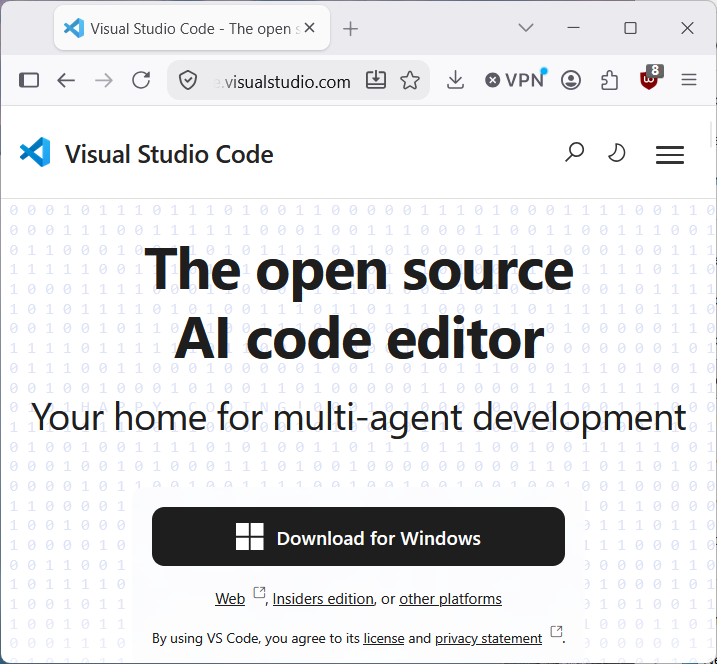
After downloading the installation package, click on the setup application to start installation. Agree to terms to continue.

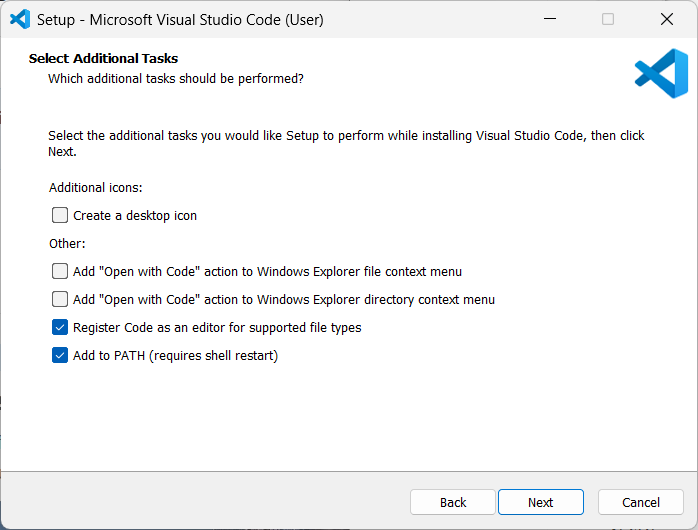
Leave the defaults as is for the installation settings.
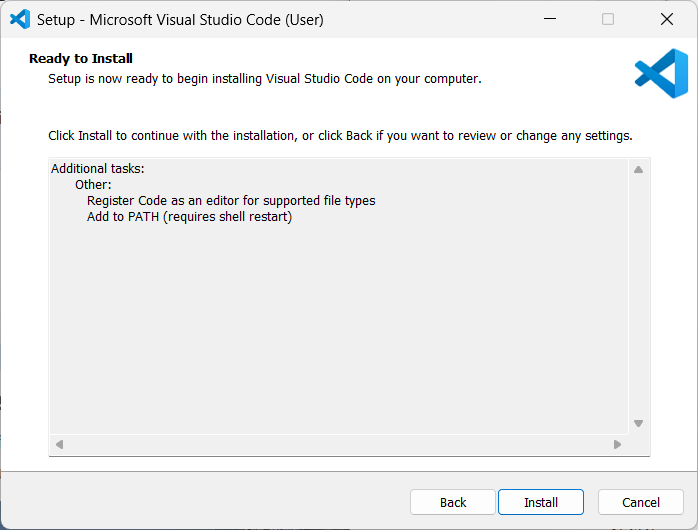
Click “Install” to finish the installation.
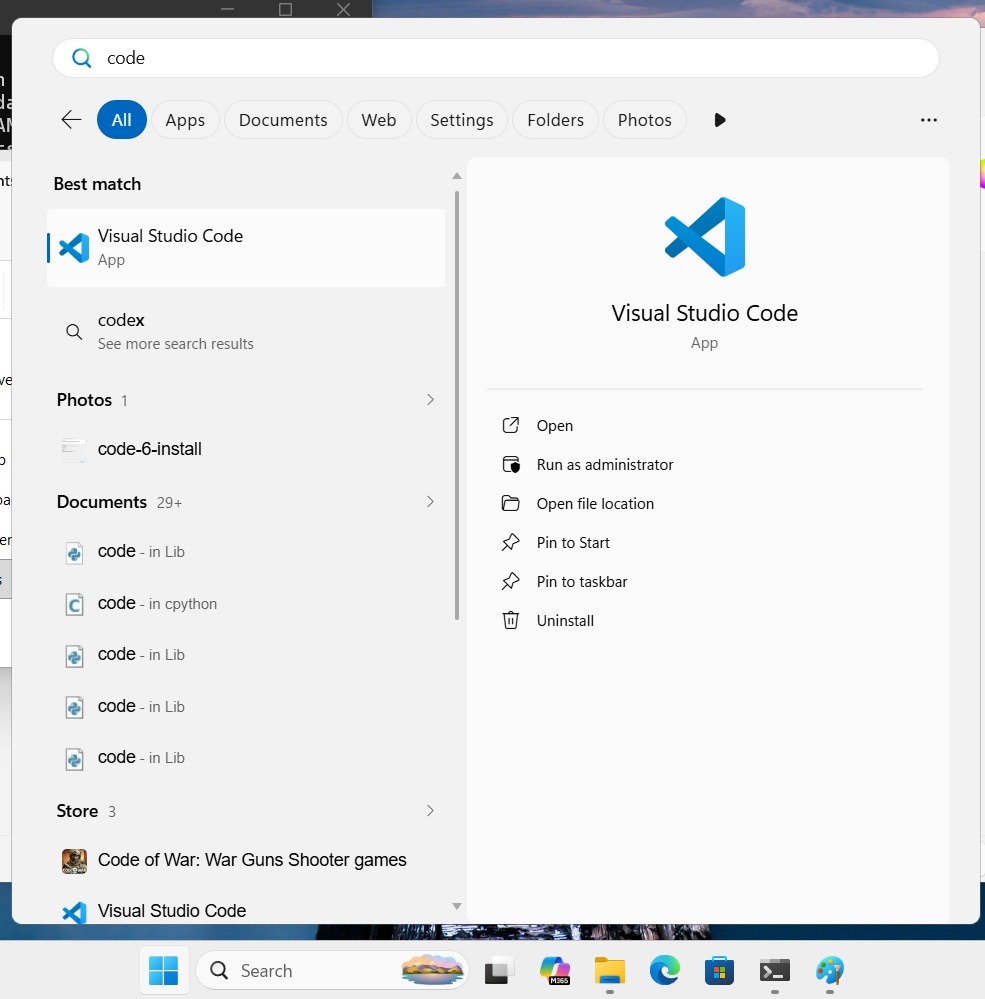
Type in “code” into the Start Menu to find the VS Code application.
Return back to the Getting Started with Python lesson to continue configuring your computer for Python programming.